
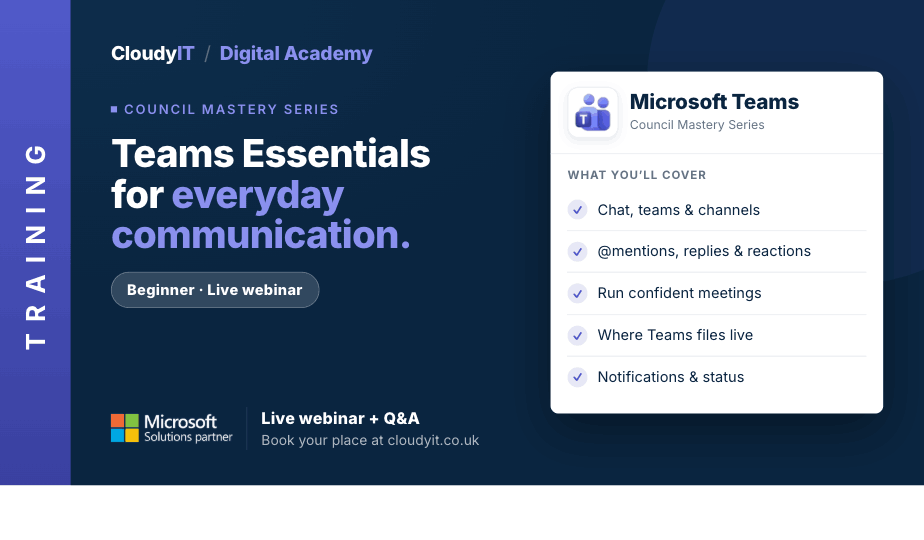
Teams Essentials for Everyday Communication
Overview:
This session is the perfect place to begin your journey with Microsoft Teams and discover its benefits for collaboration. Designed for new users of Microsoft Teams, or anyone looking to build confidence in using Teams for communication, collaboration, productivity, and understanding where Copilot can help find and summarise shared information.
Key Topics:
- Getting started with the Teams app, layout, and navigation
- Understanding the difference between chat, teams, and channels
- Setting up Teams for effective communication using chat and conversations
- Using @mentions, replies, reactions, and message formatting
- Creating and joining Teams meetings with confidence
- Meeting features such as background effects, chat, raise hand, and screen sharing
- Managing channels and files for collaboration
- Understanding where Teams files are stored and shared
- Working with files together through co-authoring and version history
- Using search to find messages, files, people, and meetings quickly
- Using Copilot in Teams to find, summarise, and work with shared council documents more efficiently
- Managing notifications and status to reduce interruptions
- Integrating Teams with Microsoft 365 tools
- Using Teams on mobile and across hybrid working environments
These practical scenarios show how the skills from this session apply to everyday council communication, meetings, and teamwork in Microsoft Teams.
Scenarios:
1. A new councillor or officer needs a simple introduction to how Microsoft 365 supports communication and collaboration across the council.
2. A delegate needs help signing in, accessing Teams, and understanding where Copilot now appears in the Microsoft 365 experience.
3. Your council wants to run better virtual meetings, capture recordings properly, and make follow-up easier.
4. Staff rely on long email chains and need to move everyday communication into chat and channel conversations.
5. A project team needs to organise channels and shared files so everyone knows where to collaborate.
6. A clerk needs to use Copilot in Teams to quickly find and summarise the latest shared agenda, policy, or briefing document before a council meeting.
7. Officers want to see how Teams works with Outlook, SharePoint, Planner, and other Microsoft 365 tools in a council setting.
Who Should Attend:
Ideal for councillors, clerks, officers, administrators, and support staff who are new to Microsoft Teams or want a clearer understanding of how it supports everyday council communication and collaboration. This session is especially helpful for those moving away from long email chains, joining more virtual meetings, sharing files with colleagues, or working across office, home, and hybrid environments.
Pricing:
- Free for CloudyIT customers using a training credit
- £65 for non-CloudyIT customers (read T&Cs)
Continue Your Digital Learning Journey:
Take the next step with sessions on Planner, Bookings, Forms, OneNote, and Loop to see how Teams connects with the wider Microsoft 365 toolkit.
Keep Building Your Digital Confidence:
- Try the Microsoft 365 Digital Skills Audit Tool
- Join an AI in Local Government Members’ Day
- Come along to a DisGovery Day in person